Keep a name and its reading together
Add a name pronunciation to iPhone Contacts
A contact can have the right spelling while Siri says the name differently. Keep the original first and last name, then use the additional pronunciation fields to check the reading separately.
Look up a name’s Japanese readingA familiar name on the screen can still sound wrong when Siri says it. Keep its spelling, add a separate pronunciation, and check the contact and language Siri is using.
Decide whether you need to change spelling or pronunciation
First and last name fields hold the contact’s original name. Add its pronunciation in a separate field, leaving the name, phone numbers and email addresses intact. Use My Card for yourself and the individual contact card for a friend or colleague.
The fictional example here is 山田太郎, with an agreed reading of やまだ for the family name and たろう for the given name. Keep 山田 and 太郎 in their respective name fields, with each reading in the matching pronunciation field. Confirm a real person’s preferred reading before following the same pattern.
Keep the name and its reading separately
For this example, 山田太郎 has the agreed reading やまだたろう. Use the contact’s own confirmed reading when filling in a real name.
山田太郎
Contact name
- Family name
- 山田
- Given name
- 太郎
Example pronunciation entries
- Family-name reading
- やまだ
- Given-name reading
- たろう
To adjust how Siri says the name, keep its spelling and look for the pronunciation name fields. Labels vary by language and system version.
Start with the symptom you can see
Check the contact card before listening to Siri. Change one item at a time and keep the previous contents so you can restore them.
| Situation | Check first | Next step |
|---|---|---|
| Siri says your own name incorrectly | Whether My Card identifies you | Edit your card and add name pronunciation fields |
| A friend’s or colleague’s name sounds wrong | Which contact card you are editing | Add the reading from that card’s Edit screen |
| Only the normal name fields are visible | Add field near the bottom of Edit | Choose a pronunciation name field |
| You see both Phonetic and Pronunciation labels | The field label and the task you want | For Siri speech, follow Apple’s pronunciation instructions |
| Japanese kana are saved but speech is still wrong | Siri’s current language and voice | Listen in that language and compare the intended reading |
| Names look reordered in the list | First/last fields and Contacts display settings | Review sort and display options in Settings |
| A saved reading is ignored in one situation | Saved contents and the card being used | Record the system version, language and affected situation |
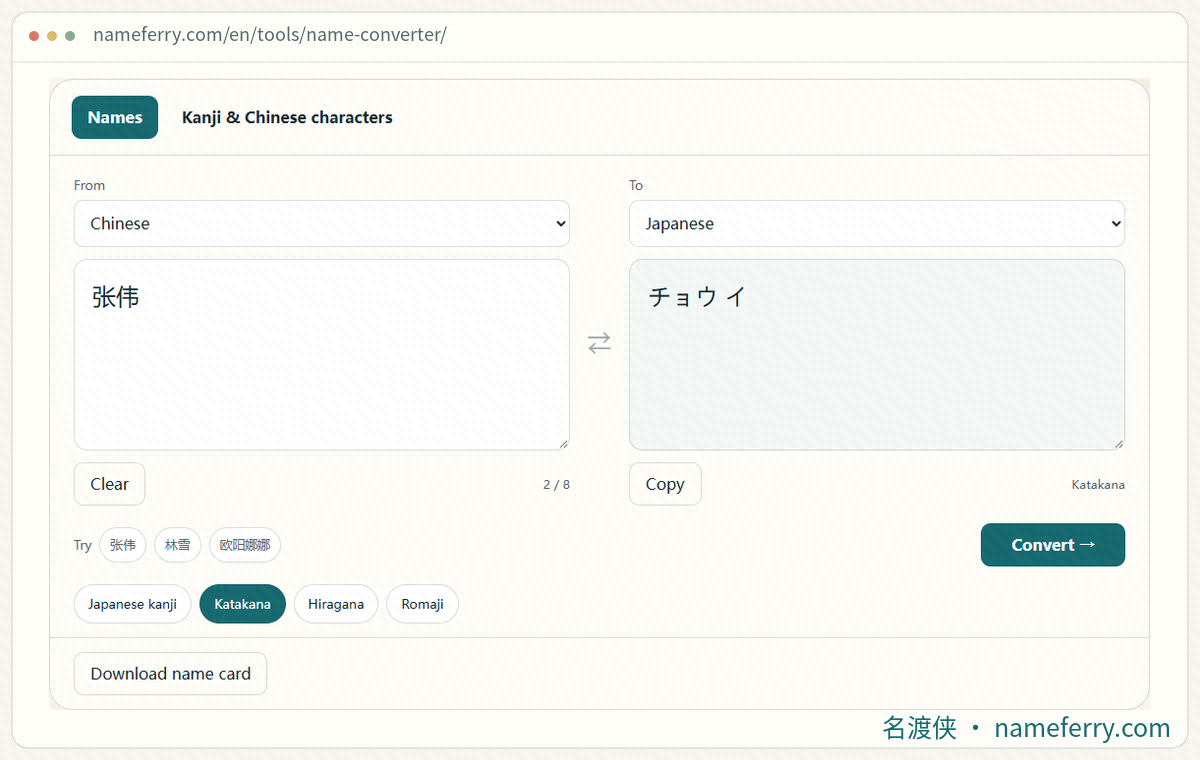
Check the name reading in NameFerry before entering the confirmed spelling in the contact’s phonetic field.
1. Keep name spelling and reading in separate fields
First and last name fields hold the original spelling. Some interfaces also offer Phonetic name or pronunciation-related fields; the labels vary by system version and language. You can add a reading while keeping the existing name.
Apple’s current Siri instructions specifically direct you to a pronunciation name field. Use that route when adjusting how Siri says a name. A reading shown on the card, a change in list order and the spoken result are separate things to check.
2. Confirm the Japanese reading before entering kana
In the example, 山田 takes やまだ and 太郎 takes たろう. Put the family-name reading with the family name and the given-name reading with the given name. Keeping the parts separate is easier to review than placing やまだたろう together in one field.
Japanese names can have more than one possible reading. Ask the person or check the kana they publish for themselves. For a Chinese name used in Japanese conversation, first establish whether they use a Japanese reading or a rendering closer to their Chinese pronunciation. A converter helps compare options; the contact should keep the person’s own choice.
Why Japanese names can have different readings
3. Add pronunciation to your own My Card
Open Contacts, select My Card at the top, and tap Edit. Scroll down to add field, choose a pronunciation name field, enter the intended reading and save the changes.
If Siri identifies you with the wrong card, check your information in Siri settings. Apple’s current English guide uses Your Information; labels differ across versions. Select your correct card, then return to Contacts to check its reading so you are editing the card Siri is using.
4. Add pronunciation to another contact
Find the person in Contacts, open their card and tap Edit. Choose the relevant pronunciation field through add field. Check how the first and last names are stored, enter the matching readings, save and reopen the card to confirm they remain.
For people with the same name, inspect the existing card details to make sure you have the intended person. Check the address book on your own device. A name-reading lookup only needs the name text you want to examine; keep phone numbers, email addresses and the complete address book out of name tools.
5. Check Siri’s current language and voice
Open Siri in Settings and inspect Language and Voice. Apple’s current guide uses Siri → Language. Other versions or devices may place the options under a label such as Apple Intelligence & Siri; searching Settings for Siri can help locate them.
After entering やまだ and たろう, compare the result with Siri’s selected language. English, Chinese and Japanese voices may handle the name differently. Decide which language’s reading you want, then adjust the pronunciation field accordingly. Change either the reading or the language at one time so you can hear what changed.
6. Review the saved card and spoken result separately
Leave Edit, reopen the same card and compare its original name with the new fields. Check that first and last names are not swapped, kana are complete and each reading is attached to the matching name part. For list order and display, inspect Settings → Apps → Contacts.
For your own card, a read-only question such as “What’s my name?” lets you check which identity Siri uses and how it says the name. With Japanese Siri, you can ask 「私の名前は?」; with Chinese Siri, 「我叫什么名字?」. Review other contacts’ fields directly on their cards. You do not need to place calls or send messages for these checks.
7. Record a specific problem if the reading is still ignored
Note the system version, Siri language and voice, and the situation in which the name is spoken incorrectly. Confirm that the field was saved, your information points to the correct card, and similarly named cards are not causing confusion. Keep the previous contents when changing one item.
A Siri version or particular interaction may not use the saved reading as expected. Keep the correct spelling and confirmed reading, and report a reproducible example to Apple with those details. Deleting contacts, resetting the phone or repeatedly changing the original name adds cleanup without identifying which part failed.
Questions about contact name pronunciation
Do I have to replace a kanji name with kana for Siri?
Keep the existing first and last name and add pronunciation through add field. Follow Apple’s pronunciation-field instructions, then check the reading Siri actually uses.
Are Phonetic name and Pronunciation name interchangeable?
Check the actual labels on your device. Apple directs users to pronunciation-related fields for how Siri says names. Review displayed phonetic text, contact order and spoken output separately.
Will English Siri say a Japanese name correctly once I enter kana?
Check the selected language, voice and situation. Preserve the person’s confirmed reading, change one setting at a time and compare the result.
Why has nothing changed after I saved a reading?
Reopen the card to confirm it saved, then check your selected identity, similarly named contacts and Siri’s language. If only one situation fails, record the system version and steps for Apple while keeping the correct spelling and reading.
Keep the spelling and check the reading separately
Confirm the person’s preferred reading and match it to the family and given names. Inspect card contents, list display and spoken output individually, changing one item at a time.
Apple’s official instructions
Use a name’s reading in conversation
How do you read a Chinese name in Japanese?
Compare Japanese name forms, kana and romanization to choose a reading.
Why Japanese names cannot be read by on’yomi alone
Compare Chinese-name on-readings and learn how Katakana, Hiragana and Romaji differ.
Your English name in Katakana
Compare English-name examples, alternate readings and Japanese form fields.
How do you introduce your Chinese name in Japanese?
Learn to explain a Chinese name’s kanji, pronunciation, and preferred form of address in Japanese.
Start with the person’s chosen reading
Look up a Japanese reading as a reference, confirm it with the person’s own spelling and pronunciation, then use the matching contact field.