Japanese phonetic names in Chrome
Save your name’s furigana in Chrome
Chrome can save a phonetic name and offer it in fields it recognizes. Find the address or contact record you actually use, save your chosen reading, then check the script and family-name fields on the destination form.
Format an existing kana nameChrome fills the name but leaves you typing the furigana again. Save a phonetic name, check its family/given-name split, then inspect what the destination form actually receives.
Prepare the reading and find the right record
The example uses 山田 太郎 as the name and やまだ たろう as its reading. If you already have a confirmed spelling of your own name, keep it. The same kanji can have several name readings, so check the information before saving it.
The steps below follow desktop Chrome’s address or contact settings. Menu names vary with language and version, and mobile layouts can differ. Edit the intended record, checking its existing address, phone number and other details as you go.
One saved reading, three places to check
Save the name and reading in Chrome, then inspect the form’s family and given names. These examples assume Chrome has recognized the fields as phonetic names.
山田太郎
Saved Chrome record
- Name
- 山田 太郎
- Phonetic name
- やまだ たろう
A form requesting Katakana
- セイ
- ヤマダ
- メイ
- タロウ
A form requesting Hiragana
- せい
- やまだ
- めい
- たろう
The settings page normally displays the reading in Hiragana. After autofill, check the destination site’s character and spacing requirements.
Start with the autofill symptom
A wrong saved reading, a different selected record and an unrecognized field need different fixes.
| What happens | First check | Next action |
|---|---|---|
| The name fills but furigana stays blank | Does that record include a phonetic name? | Open the saved record and inspect its reading |
| The same incorrect reading returns | Is the saved reading incorrect? | Edit that record, then select it again in the form |
| An old name or address appears after editing | Did you choose another saved suggestion? | Compare the name, address and active Chrome profile |
| The settings show Hiragana | Is the pronunciation still correct? | Check the script requested by the actual form |
| Family and given names split incorrectly | Where is the name boundary in the saved entry? | Confirm both parts and inspect the separate fields |
| One website refuses the filled text | Field detection and that website’s input rules | Keep the reading and adjust the form manually |
| There is no Phonetic name or Furigana field | Your version’s address or contact settings | Use the settings menu and fill the website manually for now |
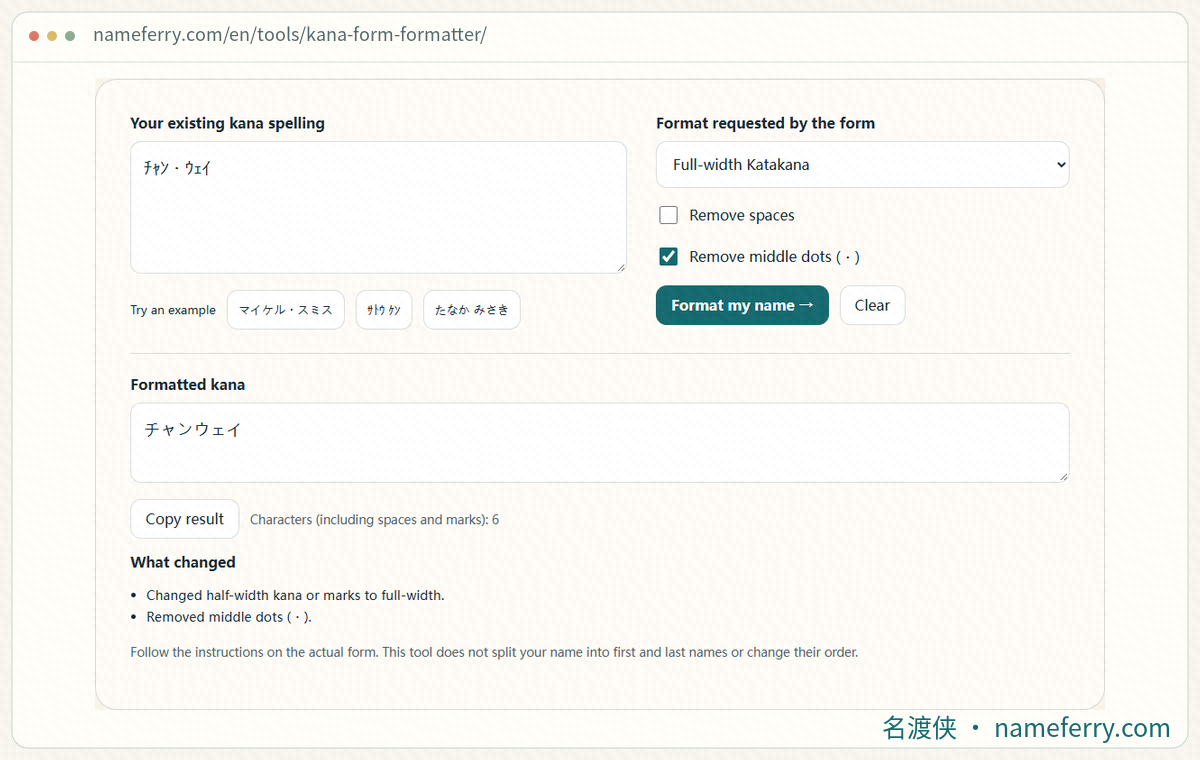
Format a known reading in NameFerry, then check the saved phonetic name and the destination form’s requirements.
1. Find the address or contact record you use
In Chrome settings, look under Autofill and passwords for Addresses and more. Some versions use Contact info or another contact-information label. Compare the saved name and address before choosing the record to edit.
On desktop, you can also paste chrome://settings/addresses into the address bar. Some versions use chrome://settings/contactInfo. These are Chrome settings addresses to enter in the browser’s address bar. Open the three-dot menu beside the intended record and select Edit.
2. Save the phonetic name you actually use
Look for Phonetic name (Furigana), よみがな or ふりがな in the editing screen. The example name is 山田 太郎 and its reading is やまだ たろう. Check both, then save. A standard space separates the two parts here; the name-splitting step below explains its role.
If your name already has an established kana spelling in a membership record, workplace or other context, check which spelling this form needs. Conversion tools can suggest candidates, while a person’s confirmed reading remains the one to preserve. Keep the regular name, phonetic name and address in their own fields.
3. Hiragana in settings can become Katakana in a form
Chrome’s documentation says its settings UI defaults to showing phonetic names in Hiragana, even though either script can be entered. Check that やまだ たろう still represents the intended reading, then inspect the result in the actual form.
Once Chrome has identified a phonetic-name field, it uses its visible label to choose a script. A label containing a Katakana character leads to Katakana; otherwise it defaults to Hiragana. For example, セイメイ calls for ヤマダ タロウ and せいめい for やまだ たろう. The site may impose additional spacing or character-width rules, so compare the filled result with its example. These are Chrome’s documented behaviors; check other browsers separately.
4. Make the family-name boundary clear in the saved record
Chrome has to divide a full-name entry when a form asks for separate family and given names. In settings, 山田 太郎 and やまだ たろう include a standard space to help identify that boundary. Check that separate セイ and メイ fields receive ヤマダ and タロウ.
Compound surnames, several middle names and other name structures need individual checking. Confirm each part using the person’s name and the site’s instructions before filling it. A separator in Chrome helps the browser parse the saved entry; the website decides whether a space belongs in its own field. Check separately entered family and given names too.
5. An old reading returns? Check the selected suggestion
After editing a record, note the name and address associated with it. Return to the form, reopen the suggestions and choose the updated record. An edit made only in a website field can leave the saved entry unchanged. To correct the stored reading, open that specific record again.
There may be several similar addresses, or the browser may be using another Chrome profile. Compare the name, address or email in the suggestion to identify its source. Keep family members’ details and other saved addresses intact, and change only the entry you have confirmed is wrong.
6. The reading field is missing, or one site stays blank
Open the address or contact record through Chrome’s settings menu and check for a phonetic-name field. Layout and availability can vary with version, device and region, and phone menus can differ. If you cannot find it, enter the confirmed kana directly in the website and keep the reading somewhere you can copy it later.
If the record has a reading but the website stays blank, check the save-and-fill setting for that information category. Chrome also needs to recognize the destination field, which depends on the site’s labels and form structure. For a field it does not fill, enter the correct kana manually and review the site’s confirmation page.
7. Filled kana still rejected? Read the site’s format requirement
Check whether the message requests 全角カナ, 半角カナ or ひらがな, then inspect its rules for spaces, middle dots and long-vowel marks. Keep the name’s reading and change the required form. A space useful for name splitting in settings still needs checking in the destination field.
When the pronunciation is correct and only width or spacing needs adjustment, use the kana formatter and paste the result back. The input-error guide below covers character width, voicing marks, small kana and length checks in detail.
8. Review the name before saving or submitting
Check the regular name, family-name order, reading and spaces, then make sure the address and phone number were filled correctly too. A name already stored by a membership or booking website is a separate record from the browser’s saved information.
When Chrome offers to save or update details, read the name and kana before accepting. Correct a temporary mistake in the website field before saving it back to the record. On later visits, select the checked entry and review the site’s confirmation page before submitting.
Questions about Chrome furigana autofill
Why do settings show Hiragana after I entered Katakana?
Chrome defaults to Hiragana in its settings UI. Check that the pronunciation is unchanged, then inspect the destination label and filled text. A recognized Katakana-name field can receive Katakana.
Does Chrome choose the correct reading of my name?
Confirm the reading before saving. The same kanji can have several name readings. Preserve the kana a person actually uses; a conversion tool can provide candidates to check.
Should every website receive a space between family and given names?
A separator in Chrome settings helps it split a full-name entry. Each website sets its own spacing rules. Remove spaces where required, and fill separate family and given-name fields individually.
My password fills automatically. Why is furigana blank?
Passwords, contact details and phonetic names involve different saved information and field detection. Check the address or contact record for a reading, then inspect the particular website. Fill the kana manually if needed.
Check the saved record, then the site’s final review
Correct a stored reading in its record, choose the intended suggestion, and handle format errors using the site’s instructions. Preserve the person’s reading and unrelated saved entries.
Official Chrome setup and field-detection references
Check name order and kana formatting
How do you read a Chinese name in Japanese?
Compare Japanese character forms, kana and romanization when checking a name reading.
Katakana name rejected?
Troubleshoot rejected kana by checking width, separators, pasted text and length.
How to fill in Furigana with a Chinese name
Distinguish name, Furigana, Hiragana and Roman-letter fields.
Your English name in Katakana
Compare English-name examples, alternate readings and Japanese form fields.
Prepare the kana spelling you want to save
Keep the confirmed reading, then adjust script, spaces and character width for the destination form.