Japanese study cards
Furigana missing in Anki? Start with one card
Readings may appear on the back but not the front, or stretch over the wrong part of a sentence. A short test note helps separate field and template problems from mobile display and pasted formatting.
Prepare Japanese text and readingsStart with one card. Compare the bracketed readings in its Reading field with the template for the side you are viewing, then follow the matching symptom below.
Save the old template before trying a short sentence
Copy and save the front template, back template and styling before editing. Cards of the same note type share templates, so one change can affect many cards. Try the minimal setup in a separate test note type and leave your existing deck’s audio, clozes and other fields intact.
The examples use a field named Reading containing 学校[がっこう]で 日本語[にほんご]を 学[まな]びます。 Readings go inside square brackets; single ordinary spaces before words mark annotation boundaries. Confirm that this sentence works before moving your own material over.
One card, from field to preview
Add a Reading field to a copied note type, then put each snippet in its matching location. Save the original templates before changing an existing deck: other cards using that note type are affected too.
学校で日本語を学びます。
学校で日本語を学びます。
学校で日本語を学びます。
1. Reading field
学校[がっこう]で 日本語[にほんご]を 学[まな]びます。2. Front template
{{kanji:Reading}}3. Back template
{{FrontSide}}
<hr id="answer">
{{furigana:Reading}}
4. Styling
.card {
  font-family: sans-serif;
  font-size: 24px;
  line-height: 2;
}
ruby rt {
  font-size: 0.5em;
}
To keep furigana visible on the front, replace its line with {{furigana:Reading}}
Reading must match your field name exactly. The ASCII spaces separate the groups receiving furigana.
Find the symptom you can see
Check the affected card’s note type and field names first. A similar-looking card may use a different template.
| Symptom | Check first | Next step |
|---|---|---|
| Readings appear only on the back | The field and filter on the front | Use the furigana filter on the front if wanted |
| 日本語[にほんご] appears literally | Whether the template uses only {{Reading}} | Use {{furigana:Reading}} in the template |
| Missing-field error or an empty line | Field name, case and note contents | Match Reading or reading exactly |
| A reading stretches over earlier kana | Missing space before the next word | Add a single ordinary space at the boundary |
| Readings are crowded or hidden | rt, ruby and hover rules in Styling | Adjust reading size and inspect hiding rules |
| Changes appear only on the computer | Sync status and the card’s note type | Sync the edited device, then the other device |
| Pasted readings mix in or vanish during editing | Bracketed text versus ruby HTML in the field | Inspect HTML in a test note first |
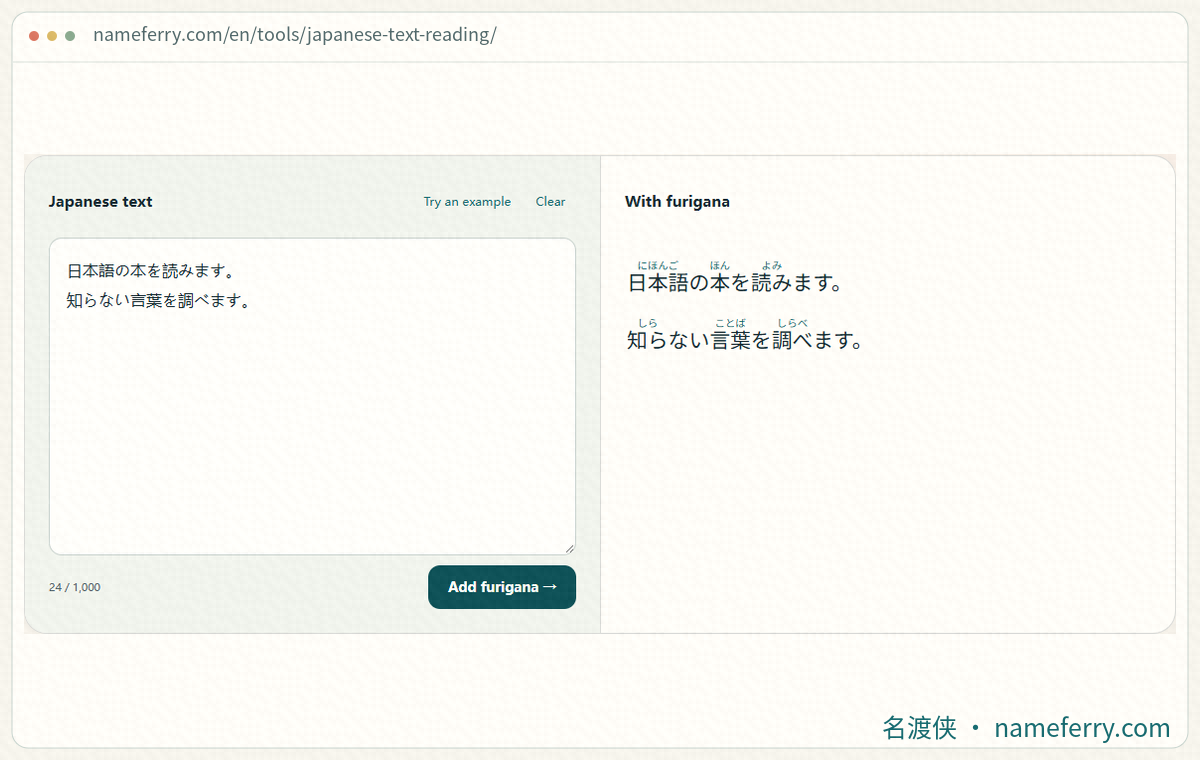
Check passage readings in NameFerry before following the field and template steps for the study card.
1. Display one Reading field with furigana
Add a Reading field to a separate test note type. On desktop, select a note in Browse, use Fields to manage its fields, and open Cards to edit the template. The labels vary with the interface language.
Put 学校[がっこう]で 日本語[にほんご]を 学[まな]びます。 into Reading. For an initial check, put only {{furigana:Reading}} on the front template and preview it. The readings should sit above 学校, 日本語 and 学. Prepare or check the bracketed readings yourself; the filter displays the readings already supplied.
2. Brackets still visible? Check the field and filter
{{Reading}} inserts the field’s contents directly. {{furigana:Reading}} interprets its word[reading] notation as above-word annotations. Put the filtered reference in the front or back template, and keep Japanese text with its bracketed readings in the field.
Reading is an example field name. Your deck might use Expression, Sentence or something else. Substitute its actual name, including the exact capitalization, and check that the selected note has content in that field. Use ordinary ASCII braces and a colon in the template reference.
3. Choose readings on the front or after Show Answer
For recall practice, use {{kanji:Reading}} on the front. On the back, place {{FrontSide}}, <hr id="answer"> and {{furigana:Reading}} in that order. You see the sentence without bracketed readings first and its furigana after revealing the answer. The example above supplies the full three-line back template.
For supported reading practice, put {{furigana:Reading}} on the front from the start. When adapting an existing deck, change the reference that displays its Japanese text rather than replacing the whole template. Keep audio, definitions and other working parts.
4. Keep each reading over its own word
Compare 学校[がっこう]で日本語[にほんご] with 学校[がっこう]で 日本語[にほんご]. The ordinary space before 日本語 marks where にほんご starts to apply. This boundary is easy to miss after a particle in a continuous Japanese sentence.
The complete example also uses を 学[まな]びます. Only 学 carries まな; びます stays in the sentence. Check the text segment before each bracket pair instead of putting a whole sentence’s readings into one final set of brackets.
5. Find the matching template on Android or iPhone
In AnkiDroid, open Cards at the bottom of the note editor, or use Manage note types from the deck picker. Select the type used by the affected note and inspect its front, back and styling. Save the existing contents before changing the field reference.
In AnkiMobile on iPhone or iPad, the study screen’s tools menu offers the Card Template action. You can also make the change on desktop and sync it to the phone. Preview both sides, then open a card in an actual review to check small-screen wrapping and the night theme.
6. Check reading size and hover-only display
Look for rt and ruby in Styling. As a starting point, try rt { font-size: 0.5em; } and adjust the preview. An existing rule may also set the size, so check which declaration applies. Long readings need horizontal room; increasing line height alone may leave the crowding unchanged.
Some templates hide rt and reveal it only on :hover. A mouse and a touchscreen do not provide the same interaction. For a readable baseline, use always-visible readings in the test template. If tapping a word also flips an iPhone card, inspect AnkiMobile’s Taps settings and turn off the action for that screen region before testing the template’s own touch control.
7. Confirm the note type, then sync both devices
Save and preview on the device you edited, sync it to AnkiWeb, and then sync the other device. Compare the same test note, including its contents, note type and both card sides. A deck can contain several note types with separate templates.
If sync asks for a full upload or download, stop to identify the device with the latest complete collection and back up both sides. A full download can overwrite local changes. Avoid repeated one-way sync attempts while you are still diagnosing a display issue.
8. Inspect pasted text and formatting in HTML view
Copying from a webpage or card preview can place ruby and rt HTML in a field, or leave kanji and readings mixed in one line. Inspect the field’s HTML view. The bracketed example here should remain text. When coloring 日本語[にほんご], avoid inserting formatting between 日本語 and [. Check the unformatted version before adding decoration.
An Anki forum report dated October 10, 2026 describes a specific Anki 26.09.3 issue on macOS: after pasting rendered ruby into another field, deleting a trailing character removed the whole word. A respondent reproduced it and edited the trailing content through HTML view. If the same thing happens, save the field contents and inspect a test note’s HTML, comparing the version and copying steps with the report.
Compare original text, parenthesized readings and copied ruby
9. Once it displays, check the actual readings
Compare your card with 学校で日本語を学びます。 Keep its particles, okurigana and punctuation, then read がっこう, にほんご and まなびます in context. Verify names, place names and ambiguous words separately. The card displays the reading stored in its field.
For material taken from screenshots, check the recognized characters and reading order before preparing readings. Remove small printed furigana accidentally mixed into the extracted sentence. You can use NameFerry to view a short passage’s readings, check them, and manually prepare the bracketed text required by this Anki template.
Questions about Anki furigana
Do I need Japanese Support just to display furigana?
Anki has a built-in furigana template filter. If a field already contains text such as 日本語[にほんご], that filter can display its reading. Generating readings is a separate step, and generated readings still need checking.
My field is named Reading. Why is there no furigana?
Check the selected note’s Reading contents, use {{furigana:Reading}} in its template, and inspect the side currently being shown. Then look for styling that hides rt.
Can I paste a furigana webpage result straight into Anki?
Test a sentence and inspect the pasted field first. Above-word annotations may arrive as HTML or mix into the text. For this page’s template, prepare checked readings in square brackets and preview the resulting card.
Will a template change affect every card in a deck?
The scope follows the note type and its card templates. One note type can be used across several decks, and changes can affect many cards produced from those notes. Save the original templates and try a separate test type first.
Get one sentence working before changing a collection
Check field contents, template references, word boundaries, styling and sync in that order. Change one part at a time and inspect both card sides before adapting your own deck.
Official instructions and specific issue reports
- Anki Manual: Field Replacements and Ruby Characters
- Anki Manual: Styling & HTML
- Anki Manual: Syncing with AnkiWeb
- AnkiDroid Manual: Custom Card Layout
- AnkiMobile Manual: Preferences, Taps and Card Templates
- Anki Forums: Furigana Spacing — 2026-10-01
- Anki Forums: Editing pasted ruby in Anki 26.09.3 — 2026-10-10
Prepare more Japanese study material
How do you read a Chinese name in Japanese?
Compare name readings in Japanese character forms, kana and romanization.
Add furigana to a Japanese passage
Follow furigana above a Japanese passage and check word-level readings.
Furigana changed after pasting? Choose what to keep
Compare base text, parenthesized readings and ruby for Word, Google Docs and print workflows.
How to add furigana to Japanese in a screenshot
Extract Japanese from an image, fix order and duplicated ruby, then add furigana.
Check the text and readings first
Start with a sentence or two, keep a clean original, and prepare the checked readings in the form your card template expects.