Screenshots and Japanese reading
How to add furigana to Japanese in a screenshot
Extract the Japanese text, compare it with the image, then paste it into the furigana tool. Start with a paragraph or one manga speech bubble so you can check each sentence.
Add furigana to extracted textA screenshot gives you no text to select. Extract a short passage, remove any small readings mixed into the sentence, then add furigana to the cleaned text.
Image, editable text, then furigana
OCR, or optical character recognition, turns writing in an image into editable text. Choose one extraction method below, copy the Japanese original and check its characters and reading order. Then paste it into NameFerry and press Add furigana.
The current NameFerry passage tool accepts text, up to 1,000 characters per conversion. Extract the image’s text in your phone or document app first. The tool then keeps the Japanese original and adds kana above words containing kanji. A short, complete passage is easier to check than a whole page copied at once.
Check the copied text against the image
These are illustrative editing examples. Use your own source image to decide which characters and breaks to keep.
| Extracted text | After checking the image | What to check |
|---|---|---|
| 来週らいしゅう、京都きょうとへ行きます。 | 来週、京都へ行きます。 | Remove kana duplicated from the image’s ruby, after confirming their role |
| 学校へ/行きます。 | 学校へ行きます。 | Here / represents a layout line break within one sentence |
| 1O月3日 | 10月3日 | Check the letter O against the digit 0 |
| パー卜 | パート | Check whether the last character is the similar-looking kanji 卜 |
| 学 校 | 学校 | Join the word if OCR inserted the space |
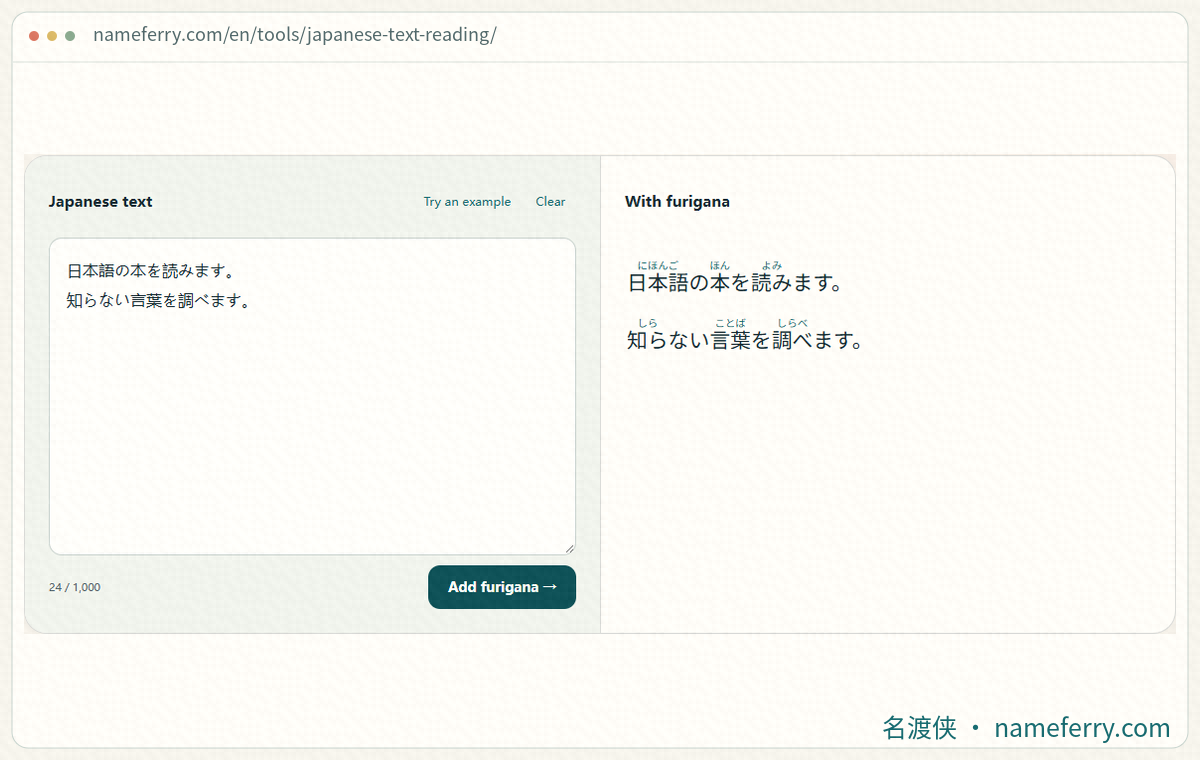
After extracting text from an image, use NameFerry to add readings and compare each sentence with the original image.
Clean the extracted text before adding readings
This illustration shows how small readings already in a picture can become part of the extracted sentence. Check against the source first.
図書館で日本語の本を読みます。
図書館としょかんで日本語にほんごの本ほんを読みよみます。
Remove readings that were mixed in during recognition. Keep the original で, の, を and みます, then paste the complete sentence into the tool.
iPhone: copy Japanese from Photos
Open the screenshot in Photos, touch and hold the text, adjust the selection and tap Copy. You can also tap Live Text first. Check Settings → General → Language & Region → Live Text if needed. Apple lists device and language requirements below.
Select just the passage you want to read, leaving out status bars, ads and page numbers. Paste it into a note or input field first and check that the opening and closing sentences are complete.
Android: select the original with Google Lens
In the Google app, tap Lens in the search bar and choose your screenshot. Select its Japanese area, tap Select text, then Copy. Copy the Japanese original for furigana. Button positions can change with the app’s interface.
If the picture contains several speech bubbles, select one at a time. When the extracted passage starts halfway through a sentence, adjust the area to include its missing beginning and end.
Computer: extract editable text with Google Drive
Upload a JPEG, PNG, GIF or PDF to your Google Drive. Right-click it and choose Open with → Google Docs, then copy the Japanese text. Google recommends files of 2 MB or less; columns and tables can lose their layout.
This sends the file to Google’s service. Crop unrelated names, addresses or account details before uploading. On a computer, place the image beside the extracted text and check one sentence at a time.
Vertical text and manga: establish the reading order
Conventional vertical Japanese runs down each column, with columns progressing from right to left. Find the top of the rightmost column, then the next column to its left. Compare each column’s ending and the next beginning with the copied text.
Manga also requires following the panels and speech bubbles. A whole-page extraction can join lines spoken by different characters. If the order is muddled, process one bubble or column at a time and assemble the text in the image’s order. Keep question marks, full stops and quotation marks.
Join line breaks caused only by the page width. For example, “学校へ” followed on the next line by “行きます。” becomes “学校へ行きます。”. Keep speaker changes, verse lines and paragraph boundaries until you have checked their purpose.
Keep printed furigana out of the base sentence
Books and manga may already print tiny kana beside kanji. If the extraction contains 京都きょうと, check whether きょうと is the reading printed beside 京都. Once confirmed, give the furigana tool just 京都 in that part of the sentence.
Remove only the kana that duplicate the image’s annotation. Keep kana belonging to the original sentence, including へ in 京都へ and みます in 読みます. Deleting all hiragana also deletes particles and verb endings.
Record any special readings printed beside a character’s name. Compare those with the new automatic reading: a story may assign a reading that differs from the usual one.
If the sentence looks odd, inspect these characters
Compare the extraction line by line with the image. Inspect the letter O and digit 0, kanji 卜 and katakana ト, and similar shapes such as シ/ツ or ソ/ン. In the example パー卜, magnify the final character. These are proofreading examples; the image decides the correct replacement.
Check small っ, ゃ, ゅ and ょ, plus voicing marks. Losing a small っ or reading ぱ as ば changes the word’s sound. Correct the recognized characters before adding furigana, keeping the Japanese spelling rather than substituting a translation.
Paste the cleaned passage into NameFerry
Open the text-reading tool, paste your checked Japanese and press Add furigana. You can finish editing before pressing the button; the result updates after you press it again. Each conversion accepts up to 1,000 characters. Split longer text after a complete sentence where possible.
For the first passage, compare the original for missing characters and check any odd reading before reading the whole sentence. The result keeps the Japanese and adds kana above words containing kanji. Dates, people’s names and place names still need context; printed readings in the source can help.
Still jumbled? Extract a smaller area
Crop out artwork, borders and unrelated columns, leaving one clear passage. Straighten and retake a tilted photo, avoiding glare over the writing. Use the original screenshot or higher-resolution file when available. Enlarging a blurred image alone cannot recover missing strokes.
Leave decorative headings, handwriting and stylized sound effects for a separate check. Read the clear body text first. For an uncertain character, type it from the image or keep a short phrase around it for reference. If you then want the annotated passage in Word or Google Docs, continue with the copying guide.
Screenshot-to-furigana questions
Can I upload the image straight to NameFerry?
The current passage tool takes text. Extract Japanese with Live Text, Lens or a document app, check it, paste it and press Add furigana.
Can I use the English translation to produce furigana?
Copy the recognized Japanese original. An English translation does not retain each original Japanese word, so it cannot supply readings aligned to the kanji in the image.
The kanji look correct. Why is a reading still wrong?
A word can have several readings. Dates, names, places and special fictional readings need context. Check the text and order first, then verify the reading.
Can I process a whole manga volume at once?
Work by speech bubble or complete paragraph. The passage tool accepts up to 1,000 characters each time. Keep the source and page number so you can return to the image.
Keep the source image nearby
A small kana, a voicing mark or the beginning of a sentence can be easy to miss. Keep the image with the extracted text so you can return to it when a reading seems unfamiliar.
Official text-extraction instructions
Continue reading and arranging the text
How do you read a Chinese name in Japanese?
Compare Chinese names with Japanese character forms, kana and romanization.
Add furigana to a Japanese passage
Follow furigana above a Japanese passage and check word-level readings.
Furigana changed after pasting? Choose what to keep
Compare base text, parenthesized readings and ruby for Word, Google Docs and print workflows.
Type Japanese on a computer or phone
Set up Japanese input and practise ん, small letters, conversion and phone flick input.
Start with one clear passage
Copy the original, check its characters and order, then add furigana.