Japanese keyboard guide
Type Japanese on a computer or phone
On a computer, type sounds such as ka to get か, then choose a kanji or Katakana candidate. On a phone’s 12-key keyboard, tap or flick a kana key. Start with the setup for your device, then practise the characters that tend to get stuck.
Check the reading of Japanese textAdded a Japanese keyboard but still getting Latin letters? Check its input mode, then try a short word. Find your computer or phone below, with small-kana examples nearby.
Choose Romaji on a full keyboard, or Kana on a phone
A computer’s Japanese Romaji input method turns Latin keystrokes into kana. Select Japanese and Hiragana mode, then try ka, ki, ku: the result should be かきく. The Japanese input source and its character mode both matter.
A phone can use a similar QWERTY layout or a compact kana layout. The 12-key layout groups letters under keys such as あ, か and さ. The phone examples here use Japanese Kana and Gboard’s Japanese 12-key layout; the labels on special keys vary by keyboard.
Useful keystrokes, from vowels to conversion
Use these with Japanese Romaji input in Hiragana mode. The kana mappings are listed in Apple’s official table; conversion commands are explained separately for Windows and Mac below.
| You want | Keys to type or press | Result or action | Check this |
|---|---|---|---|
| あ / い / う / え / お | a / i / u / e / o | あ / い / う / え / お | Start with the five vowels |
| し / ち / つ / ふ | shi / chi / tsu / fu | し / ち / つ / ふ | Complete each letter combination |
| ん by itself | nn | ん | Finish the sound before converting |
| ん before a vowel or y | n' | ん with a clear boundary | kan'i → かんい; shin'you → しんよう |
| Small っ by itself | xtu / ltu | っ | tsu gives full-size つ |
| がっこう | gakkou | がっこう | Double k for っか |
| Small ゃ | xya / lya | ゃ | xyu / lyu → ゅ; xyo / lyo → ょ |
| きゃ | kya | きゃ | Small ゃ; kiya produces きや |
| ぢ | di | ぢ | ji produces じ |
| づ | du | づ | zu produces ず |
| を | wo | を | Use this spelling to type the particle |
| Long-vowel mark ー | - | ー | Press the hyphen key in Japanese input mode |
| Voiced or p sound | ga / pa | が / ぱ | Type the complete sound |
| Choose and commit a candidate | Space → Enter / Return | Convert, then confirm | Review the candidate before committing |
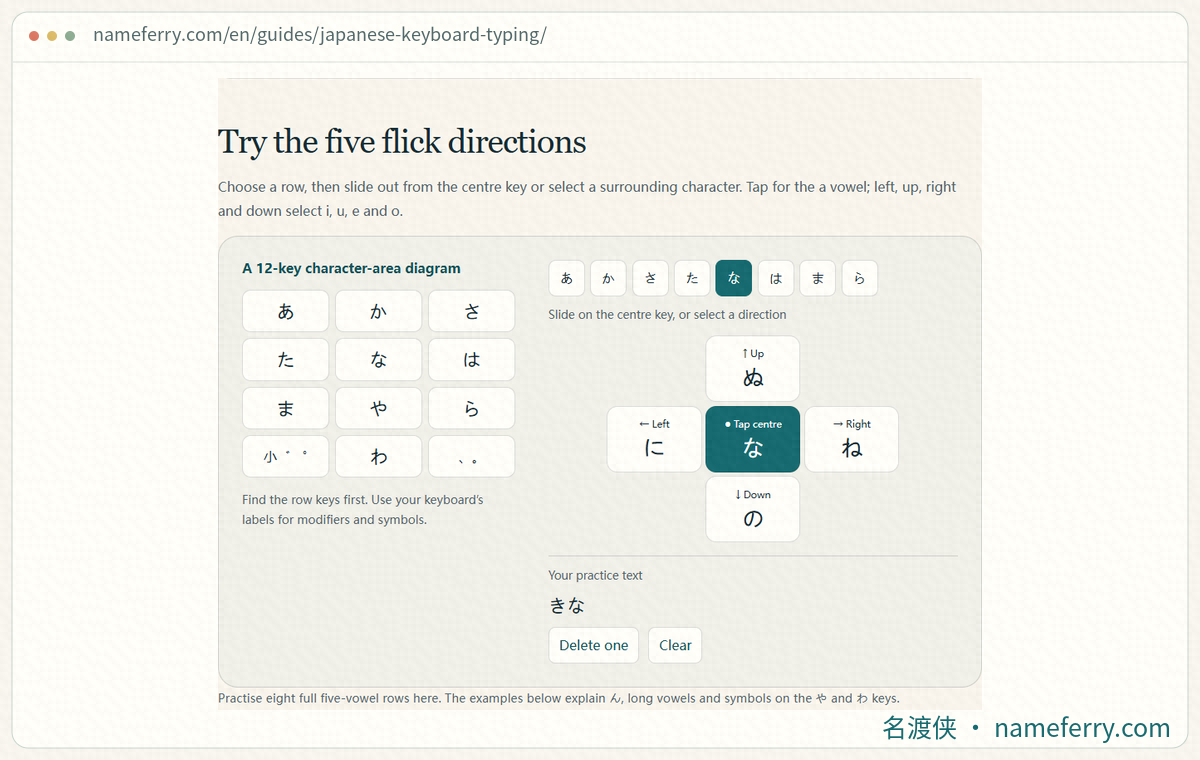
Choose a key and a flick direction in NameFerry’s practice panel to see which kana it produces.
Try the five flick directions
Choose a row, then slide out from the centre key or select a surrounding character. Tap for the a vowel; left, up, right and down select i, u, e and o.
Find the row keys first. Use your keyboard’s labels for modifiers and symbols.
Slide on the centre key, or select a direction
Practise eight full five-vowel rows here. The examples below explain ん, long vowels and symbols on the や and わ keys.
Windows and Mac: turn on Japanese Romaji input
Windows 11: open Settings → Time & language → Language & region. Add Japanese if needed, then check Microsoft IME under its language options. Use the taskbar input selector or Windows + Space to switch to Japanese. Choose Hiragana, shown as あ, and check that the typing method is Romaji.
Mac: open System Settings → Keyboard → Text Input → Edit. Use the add button to select Japanese – Romaji. Switch to that input source and choose Hiragana from the Input menu. Type ka in a text field to check for か. If a single letter produces an unrelated kana, check whether direct Kana input is selected.
ん: use nn on its own, and an apostrophe at a boundary
For a standalone ん, type nn. When the next sound begins with a vowel or y, an ASCII apostrophe separates the sounds: kan'i gives かんい, and shin'you gives しんよう. Without the boundary, the n can join the next letters as な or にゃ.
For んな, split it visibly as n'na. Treat nn as the input for ん when practising; a run of n letters needs care because the following vowel can change how the input is grouped. Check the kana before choosing a candidate.
Small っ: double the following consonant
Type gakkou for がっこう: the doubled kk creates っか. Kitte gives きって. To insert っ on its own, use xtu or ltu, then continue typing. For まっちゃ, maccha follows the same repeated-consonant pattern; ma + xtu + cha makes the pieces explicit.
Keep n as its own special case. Use the ん inputs in the previous section for that sound, and xtu or ltu when you specifically need small っ. For example, xtu followed by na spells out っな.
Small ゃゅょ, voiced sounds and ぢづ
Kya produces きゃ, while kiya produces きや. In the first, ゃ is small. Type xya or lya for a standalone ゃ; use xyu or lyu for ゅ, and xyo or lyo for ょ. A short check of the character size catches many name-entry mistakes.
On a Romaji keyboard, ga produces が and pa produces ぱ. Use di for ぢ, du for づ, and wo for を. Typing the pronunciation you hear can lead to a different character: ji and zu produce じ and ず, so compare the spelling in your original text.
Long vowels: the ー key and the kana spelling
In Japanese Romaji input, the hyphen key produces the long-vowel mark ー. Try ko-hi- to enter こーひー, then choose コーヒー from the candidates or use the Katakana shortcut below.
For words normally written in hiragana, follow the kana spelling: gakkou gives がっこう, and ookii gives おおきい. Keep the う or い in the original word when practising. The long-vowel mark in a Katakana word and the hyphen in an English name serve different jobs.
Space for candidates; F7 or Control-K for Katakana
In Microsoft IME, Space first converts the text and another press opens the candidate list. Select the form you want, then press Enter. While composing a reading, F7 converts it to full-width Katakana. For example, type toukyou and review 東京 or トウキョウ before confirming.
On Mac, Space opens or cycles conversion candidates and Return confirms them. Control-K converts the current text to Katakana; F7 is also listed, with Fn needed on some keyboards. Live Conversion may already suggest kanji as you type. Use the Input menu and the displayed candidates to check the current mode.
Add Japanese Kana on iPhone, or 12-key Japanese in Gboard
iPhone: open Settings → General → Keyboard → Keyboards → Add New Keyboard. Choose Japanese and the Kana layout. In a text field, hold the globe or keyboard-switch button and select the Japanese keyboard. Choose Romaji instead if you prefer typing Latin letters.
Android with Gboard: open Gboard settings → Languages → Add keyboard → Japanese. Select 12-key and finish setup. If Japanese is already installed, open its language settings and enable 12-key. Open a note and check that keys such as あ, か and さ appear.
Flick from the centre: あ, left い, up う, right え, down お
Tap あ for あ. Start on the same key and slide left for い, up for う, right for え, or down for お, then release. The main rows follow that vowel order: on か, a downward flick gives こ; on な, a left flick gives に.
On Gboard’s Japanese 12-key layout, flick わ upward for ん. Practise こんにちは in five actions: か down, わ up, な left, た left, then tap は. Pause between letters while you learn where your finger needs to start.
If repeated taps cycle one key’s letters, check the flick-only option. Gboard places it under Settings → Languages → Japanese (12-key) → 12-key layout settings → Flick only. With flick-only enabled, consecutive centre taps can enter repeated centre letters, such as はは.
Phone small letters, ゛゜ and the long-vowel mark
On the Gboard layout shown in Android’s official guide, first enter the base kana, then use the 大⇔小 modifier key. It changes は to ば with one tap or a left flick, and to ぱ with two taps or a right flick. For っ, enter つ by flicking た upward, then use the modifier to make it small. や, ゆ and よ can likewise be changed to small ゃ, ゅ and ょ.
Gboard groups ー under わ. Hold the key to inspect its choices, then move to ー and release. On iPhone or another keyboard, follow the visible choices and modifier labels on that layout. Try がっこう, きゃ and コーヒー in a note before entering a longer message.
Common typing questions
I type ka, but it stays as Latin letters. What should I check?
Select the Japanese input source and Hiragana mode. On Windows, check the taskbar’s Japanese IME indicator; on Mac, check the Input menu. With Japanese Romaji input active, ka produces か.
How do I type ん before や or a vowel?
Use an ASCII apostrophe after n: shin'you → しんよう, kan'i → かんい. For んな, n'na shows the boundary clearly. Check the kana before converting it.
How can I type はは on a phone without it changing to ひ?
Repeated taps can cycle through a key when toggle input is enabled. Use flick-only mode, or use the keyboard’s next-character control between taps. In Gboard, Flick only is in the Japanese 12-key layout settings.
Practise in a note before filling a form
Try かんい, がっこう and コーヒー, then compare each character with the original. For a name field, also check whether the service asks for Hiragana, full-width Katakana or another format.
Keyboard documentation
- Microsoft: Japanese IME and conversion keys
- Microsoft: Add and switch keyboard layouts
- Apple: Set up a Japanese input source on Mac
- Apple: Roman characters and corresponding kana
- Apple: Japanese conversion shortcuts on Mac
- Apple: Add or change keyboards on iPhone
- Gboard: Add a keyboard language on Android
- Android: Japanese 12-key flick input and Gboard settings
Continue with kana and reading guides
How do you read a Chinese name in Japanese?
Compare Japanese forms and readings of Chinese names.
Add furigana to a Japanese passage
Follow furigana above a Japanese passage and check word-level readings.
Japan’s romanization update: which spelling should you use?
Use the 2025 guidance to compare romaji, long vowels, established names and keyboard input.
Katakana name rejected?
Troubleshoot rejected kana by checking width, separators, pasted text and length.
Read back the Japanese you typed
Paste a short Japanese passage into the text-reading tool to check its furigana.