Copying Japanese and formatting documents
Furigana changed after pasting? Choose what to keep
A reading placed above kanji on a webpage can disappear or move into the sentence when pasted elsewhere. Decide whether you need the original text, the readings or the two-level layout before copying a whole passage.
Add furigana to Japanese textThe reading sits neatly above the kanji, then lands inside the sentence when pasted. Choose the form you need and try one short sentence in the destination app first.
Test one sentence before moving a whole passage
Use 図書館で日本語の本を読みます。 for a small test. Paste its original-only and bracketed versions into your usual document, then compare the kanji, readings and punctuation. Once the result looks right, continue with your own passage.
Keep editable text when you will revise, search or look up words later. For a handout or reading copy, check the visual layout as well. A screenshot can capture the appearance, but changing a word or reflowing the text later takes extra work.
What do you need to preserve?
Different tasks call for different forms of the same sentence. Choose the destination before doing the cleanup.
| Your task | Useful form | First check |
|---|---|---|
| Edit, look up words or generate readings again | Original Japanese only | Keep the kanji, original kana and punctuation |
| Send a message or keep notes with readings | Words followed by readings in parentheses | Pair each reading with the correct word |
| Show furigana above kanji on a website | HTML with ruby annotations | Check the published preview |
| Edit and lay out a Word document | Original text with Word phonetic guides | Japanese features, readings and line spacing |
| Collaborate in Google Docs | Test a short passage; use brackets if needed | Check for missing or inline readings |
| Share a reading copy or print a handout | A checked PDF or printed copy | Check small kana, line endings and page breaks |
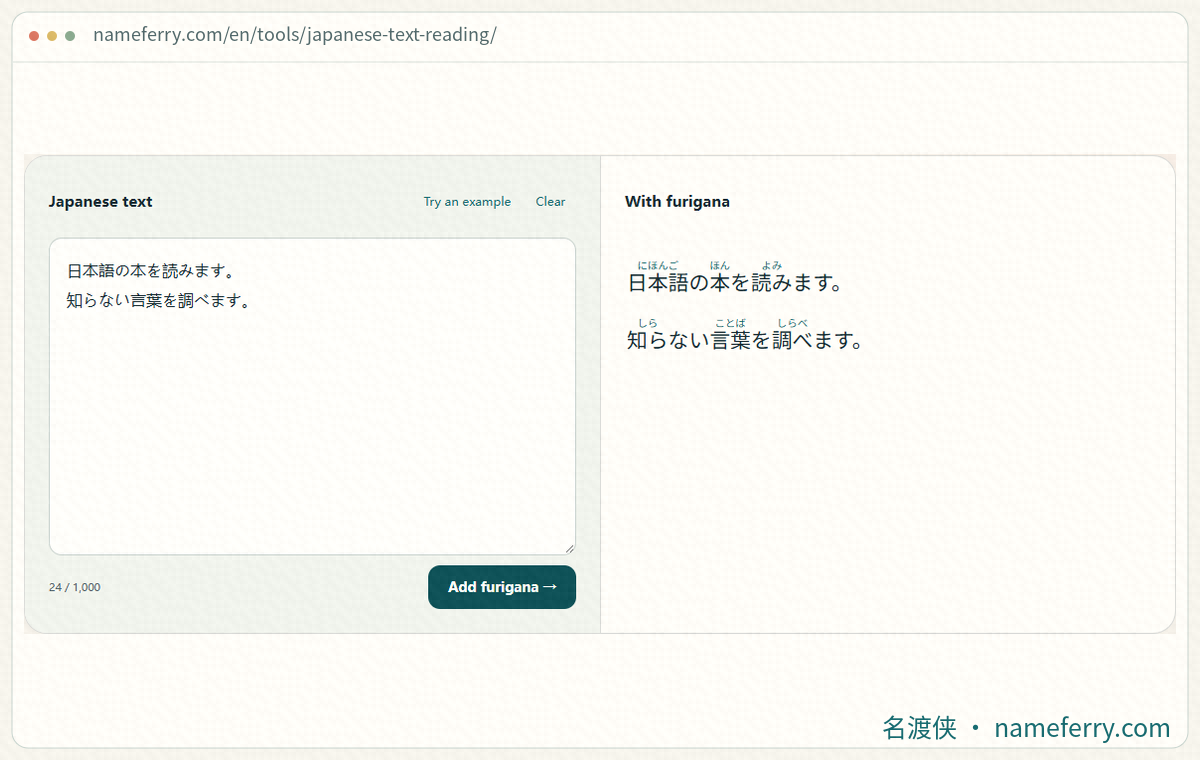
The NameFerry passage tool in use. Check the text and readings, then choose the copy format described in the article.
One sentence, three ways to keep it
Read the ruby version, edit the original, or use brackets in a plain message. The buttons below copy this sample sentence only.
図書館で日本語の本を読みます。
This is HTML ruby. After pasting elsewhere, check that the position and original sentence survived.
For editing, dictionary lookup or adding fresh readings.
Ordinary text keeps the readings visible in messages and notes.
What happens to a reading above kanji?
A webpage can connect 図書館 with としょかん using HTML ruby. The characters and the reading are both text; the browser arranges them on two levels. The app receiving a paste then has to interpret that structure.
A destination that keeps the annotation may display it above the word. A plain-text destination may place it in the same line or leave it out. The source page, browser and receiving app can affect the result, so a one-sentence test saves cleanup later.
For original text only, copy from the source or input box
For another conversion, a translation or a word lookup, copy from the unannotated source or the tool’s input box. The original here is 図書館で日本語の本を読みます。 Keep the kana already in the sentence, including で, の, を and みます.
Deleting every hiragana character also removes particles, verb endings and okurigana. If your pasted text contains something like 図書館としょかん, return to a clean original when you can. It is quicker and safer than guessing which kana to remove throughout a paragraph.
For messages and notes, keep readings in parentheses
A readable plain-text version is 図書館(としょかん)で日本語(にほんご)の本(ほん)を読み(よみ)ます。 Each word stays beside its reading without needing a two-level layout. Use the original and bracketed copy buttons in this page’s example to compare them in your usual app.
The segment 読み corresponds to よみ as a whole. Read 読み(よみ)ます as よみます. When preparing a longer passage, keep its sentence breaks and check for missing parentheses or a reading attached to the wrong word.
In Word, use Phonetic Guide for editable furigana
In a supported desktop Word version with Japanese language features enabled, select the word and open Home → Font → Phonetic Guide. Enter or check its reading, preview the placement and apply it. Microsoft’s help page lists the supported versions and language prerequisite.
Try 図書館 with としょかん first. Adjust the size and spacing before continuing. Word’s own guides are useful when you need to revise the document repeatedly. Check the reading again after editing the word, and leave enough line spacing for the small kana above it.
In Google Docs, compare a normal paste with plain text
Start in a blank document and paste one annotated sentence normally. Check the reading position, kanji and sentence ending before transferring the full passage. Clipboard conversion can change how a webpage’s two-level layout appears in the document.
Google Docs uses Ctrl + Shift + V on Windows or ChromeOS and ⌘ + Shift + V on Mac for Paste without formatting. This removes styling such as fonts; readings already copied as text may remain. For just the Japanese, copy a clean original. To keep the reading in a plain-text sentence, use parentheses.
For shared material, ask the recipient to check a small sample first, especially on a phone. Revisit the reading position after later edits, fresh pastes or a change of device.
For a webpage or printout, inspect the saved result
On your own website, HTML ruby and rt can keep base text associated with a reading. Pasting the markup itself into a normal document will generally show code. A blog editor also needs to permit the markup, so inspect its published preview.
For a reading copy, open the browser or document’s print preview. Check small kana, page edges and words near page breaks before printing or saving a PDF. Switch Google Docs to pages format when you need to control page layout.
In Chrome, Google Docs opens print settings from File → Print. In Firefox and Safari it downloads a PDF first; open that file to inspect or print it.
After using a browser’s Save page option, reopen the saved file and check it. An annotation generated during a tool session may not be preserved with the page. Keep the original text separately and inspect the print preview of your reading copy so later revisions can start from clean text.
Before sharing, check four parts of the text
Compare the beginning and end to catch a missing fragment. Check particles such as で, の and を and the endings of verbs. Look at small ゃ, ゅ, ょ and っ and long vowels, then verify readings for personal names, place names and dates.
Text extracted from an image needs a character check first. Vertical reading order, small furigana already printed in a comic and similar-looking kanji can interfere with extraction. Clean up that original before adding readings and moving it into a document.
Questions about copying furigana
Why are readings still there after Paste without formatting?
The command removes styling such as fonts and colors. A reading already on the clipboard as text may be pasted too. For original-only Japanese, copy from a clean source or input box and keep its original kana and punctuation.
Can I line readings up above kanji with spaces?
Space-based alignment shifts when the font, width or line breaks change. Use ruby on a website, phonetic guides in a supported Word version or parenthesized readings in plain text.
Can I annotate the pasted text when readings are mixed into it?
Recover a clean original first. Otherwise the extra reading text gets processed along with the sentence, creating more material to check.
Should I keep the original after saving a PDF?
Yes. A PDF is useful for viewing and printing; the original makes later editing, word lookup and annotation easier. Reopen the PDF before sharing to check the small kana and line endings.
Choose the form before copying the full passage
Keep original text for editing, use parentheses for plain-text readings, and test the receiving app for above-kanji layout. One checked sentence can save a whole passage of cleanup.
Format and document references
Prepare more Japanese reading material
How do you read a Chinese name in Japanese?
Compare names in Japanese character forms, kana and romanization.
Add furigana to a Japanese passage
Follow furigana above a Japanese passage and check word-level readings.
How to add furigana to Japanese in a screenshot
Extract Japanese from an image, fix order and duplicated ruby, then add furigana.
Type Japanese on a computer or phone
Set up Japanese input and practise ん, small letters, conversion and phone flick input.
Furigana missing in Anki? Start with one card
Troubleshoot Anki furigana fields, templates, spacing and mobile display using one complete example.
How to add Japanese readings to Chinese names in Excel
Convert Chinese name lists to Japanese readings, copy them into Excel and review the spellings.
Start with a short Japanese passage
Keep the original, add and check its readings, then choose a form that suits your document.