Add readings to a name list
How to add Japanese readings to Chinese names in Excel
Copy the names, put one on each line and convert them. Then paste the results into Excel. Start with the three examples below; the batch tool accepts up to 20 names at a time.
Paste and convert a name listStart with three names, then work through the whole list. Keep the Chinese spelling beside the added reading so each pair is easy to check.
The result: a name with a reading beside it
For a class list or character list, keep the Chinese name and add a reading such as チョウ イ beside it. These Japanese characters are Katakana, which can show how a name is pronounced.
Try the three sample names before replacing them with your list. Review the reading for its intended use and retain any spelling the person already uses.
Example: names with Japanese readings
These examples use the Japanese readings of the Chinese characters. A Mandarin-based spelling is explained below.
| Original Chinese name | Japanese reading in Katakana |
|---|---|
| 张伟 | チョウ イ |
| 王小明 | オウ ショウメイ |
| 陈美玲 | チン ビレイ |
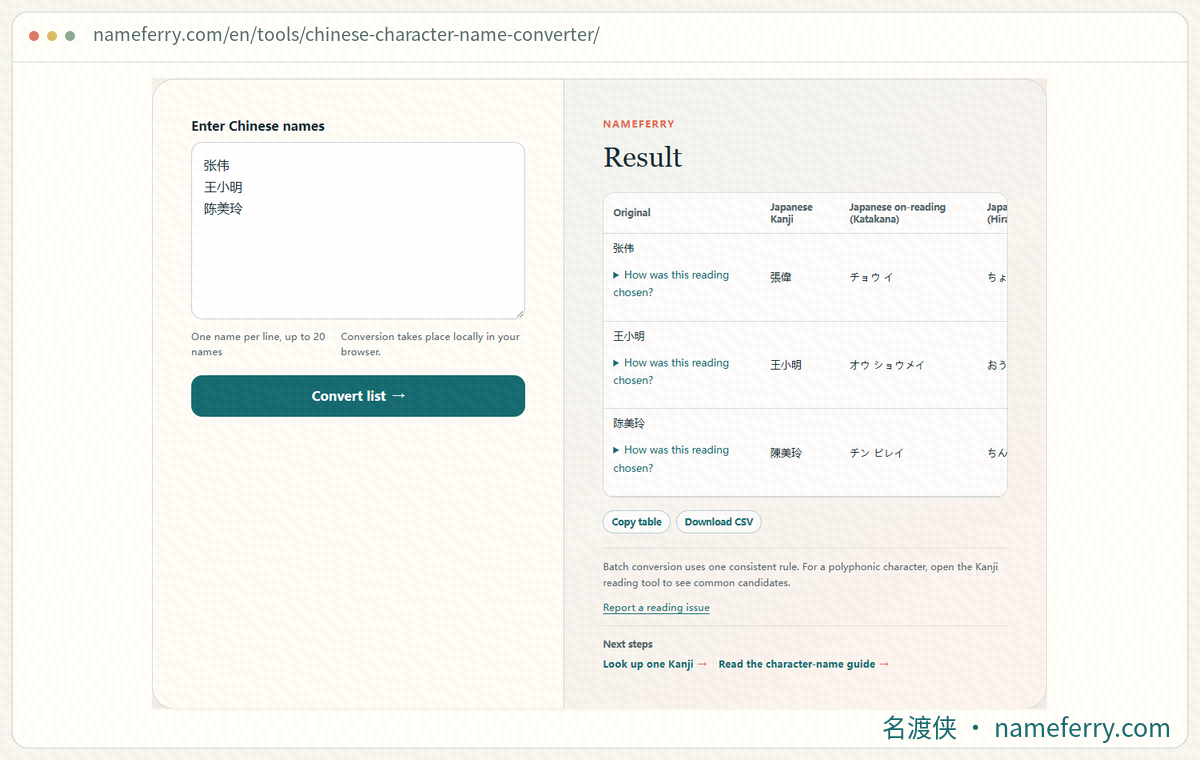
Prepare readings in NameFerry: enter one Chinese name per line, then use Copy table or Download CSV before reviewing the list in Excel.
1. Paste one name per line and convert
Open the batch name converter and paste the names from Excel. Put one name on each line, up to 20 at a time. The three examples are 张伟, 王小明 and 陈美玲.
Click “Convert list”. The result shows the original name, Japanese character forms, Katakana, Hiragana and Romaji. Check that every name is present, then find the reading column.
2. Use “Copy table” and paste into a blank Excel sheet
Click “Copy table” below the result. In Excel, start on a blank sheet, select an empty cell and paste. Check that the names and readings occupy the matching columns.
The tool copies all five columns. For a two-column list, keep the original name and Japanese Katakana reading in this working copy, retaining any other columns you need. Check the row order before merging it with your original list. “Download CSV” also saves the table as a file you can open.
3. Choose a Japanese reading or a Mandarin-based spelling
For 张伟, チョウ イ reads the characters with their Japanese on-readings. チャン・ウェイ approximates the Mandarin pronunciation, Zhāng Wěi. Both use Katakana but serve different purposes.
The batch tool gives Japanese on-readings. To introduce yourself using the Mandarin sound, open the individual name converter and find its Mandarin pronunciation reference. Use the person’s established spelling for a registration or contact list.
4. Review the readings and keep the original names
Put each original name beside the chosen kana and check the pair. Mark uncertain readings for review, then ask the person or consult an existing record.
People with the same written name may read it differently. Match registration or employee IDs when available, and sort or filter whole rows to keep each reading with its owner. Keep Japanese character forms in a separate column when needed.
5. Adjust Hiragana, character width and spaces if required
Use the Hiragana result column when that is requested. The kana formatter can convert a confirmed reading to full-width or half-width Katakana and adjust spaces or middle dots.
Keep voicing marks and long vowels: ガ becomes ガ in half-width form, while リー retains its long-vowel mark. For small readings above kanji, consult the instructions for your Excel version separately from the plain reading column.
Why does PHONETIC still return kanji?
Excel’s PHONETIC function extracts furigana already saved with a cell. A list containing names without that reading information may still return kanji.
Microsoft explains that newly entered data in Japanese Excel can have phonetic guides; opening files created in older versions or other programs does not add them automatically. Look for a supplied ふりがな or カナ column first. For Chinese names without readings, use the workflow above.
If you need the formula, test one cell first
With the name in A2, enter =PHONETIC(A2) in B2. Check that row before copying the formula down; the next row should refer to A3, then A4.
Compare extracted kana with the person’s reading. If kanji remain, return to the source for readings. For a formula displayed as text, check its entry. If unavailable, check Microsoft’s supported versions and its Japanese, Chinese or Korean region-setting requirement.
Reopen the file before sending it
Check each name, reading and ID together. Keep pending readings marked and share only the columns needed by the recipient.
CSV is a table stored as text. It retains the displayed text and values of the current sheet, losing other formatting. Keep the original Excel workbook and reopen the exported file to check the Chinese names, kana and column order.
Questions while following the steps
Can I do this without Excel formulas?
Yes. Paste one Chinese name per line into the batch tool, convert, then use “Copy table” to paste the results into Excel. Review the readings for your intended use.
What if everything pastes into one column?
Use “Download CSV” to save the table and open it in Excel. Check names, readings and column order in a working copy before merging it into the original list.
Should I choose チョウ イ or チャン・ウェイ?
チョウ イ uses Japanese on-readings; チャン・ウェイ approximates Mandarin. Choose for the purpose and the person’s spelling. Batch results use on-readings; the individual converter provides the Mandarin reference.
Can I use this batch tool for Japanese people’s names?
This batch tool is designed for Chinese names. For a Japanese name, use the person’s supplied kana and check any saved Excel reading information. Identical written names can have different readings.
One last check before saving
Keep the original names, review the kana and make sure every row still refers to the same person. Then save the version you need.
Excel operation references
More help with names and kana
How do you read a Chinese name in Japanese?
Compare Japanese character forms, Japanese readings and Mandarin pronunciation.
Furigana changed after pasting? Choose what to keep
Compare base text, parenthesized readings and ruby for Word, Google Docs and print workflows.
Katakana name rejected?
Troubleshoot rejected kana by checking width, separators, pasted text and length.
How to write a Chinese name in Japanese Katakana
Compare Japanese readings, Mandarin pronunciation and the available Kana formats.
Try three names first
Paste one name per line, convert and copy the table, then work through your own list.